Managing contacts

To add a new contact for your account, follow these steps:

  1. Log in to the Customer Portal.
    If you do not know how to log in to the Customer Portal, please see this article.
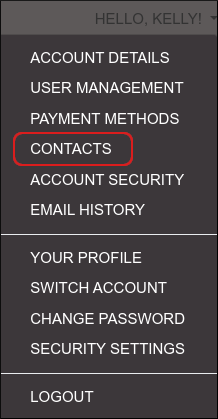
  2. On the menu bar, click HELLO, NAME!, where NAME is your first name:

    Customer Portal - HELLO, NAME! menu

  3. Click CONTACTS:

    Customer Portal - Contacts

  4. In the Choose Contact list box, select Add New Contact, and then click Go.
  5. Fill out the fields with the contact's information.
  6. Under Email Preferences, select the types of e-mail messages that you want the contact to receive.
  7. Click Save Changes.

Deleting a contact

To delete a contact, follow these steps:

  1. Log in to the Customer Portal.
    If you do not know how to log in to the Customer Portal, please see this article.
  2. On the menu bar, click HELLO, NAME!, where NAME is your first name:

    Customer Portal - HELLO, NAME! menu

  3. Click CONTACTS:

    Customer Portal - Contacts

  4. In the Choose Contact list box, select the contact you want to delete.
  5. Scroll to the bottom of the page, and then click Delete Contact.
  6. To confirm deletion, click OK.
  • 0 Utilisateurs l'ont trouvée utile
Cette réponse était-elle pertinente?

Articles connexes

Editing account details

As an account owner, you can edit your account details. To do this, follow these steps: Log in...

Account security

Changing your password To change the password for your account, follow these steps: Log in to...

Enabling two-factor authentication

About two-factor authentication By default, when you log in to the Dollar OVPN Customer Portal...

Transferring account ownership

This article describes how to transfer ownership of an Dollar OVPN account to someone else using...

Cancelling a product or service

Cancelling a product or service You can cancel a product or service associated with your account...