Changing your password
To change the password for your account, follow these steps:
- Log in to the Customer Portal.
If you do not know how to log in to the Customer Portal, please see this article.
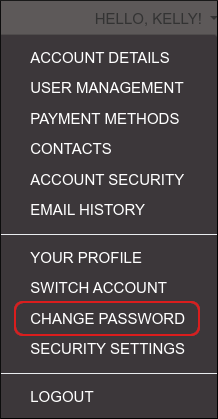
- On the menu bar, click HELLO, NAME!, where NAME is your first name:

- Click :
- In the Existing Password text box, type your current password.
-
In the New Password text box, type the new password.
Alternatively, click Generate Password and the Customer Portal will automatically generate a strong, random password for you. - In the Confirm New Password text box, retype the new password.
- Click .
Changing your security question
To change the security question and answer for your account, follow these steps:
- Log in to the Customer Portal.
If you do not know how to log in to the Customer Portal, please see this article.
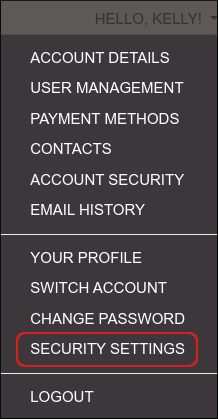
- On the menu bar, click HELLO, NAME!, where NAME is your first name:
- Click :
- Under Change Security Question, if you have previously defined a security question, type the answer in the first text box.
- In the Please choose a security question list box, select a security question.
- In the Please enter an answer text box, type the answer to the question.
- In the Please confirm your answer text box, retype the answer to the question.
- Click .
Resetting your password
If you forget your password for the Customer Portal, you can reset it. To do this, follow these steps:
- Go to the Customer Portal at https://whmcs.dollarovpn.com.
- On the login page, click Forgot Password?.
- Under Lost Password Reset, in the Email Address text box, type the e-mail address that is associated with your account.
- Click .
- If you have a security question set up for your account, you must type the answer in the text box, and then click .
- You will receive a message at the e-mail address that you specified. Follow the instructions in the message to complete the password reset process.
Enabling two-factor authentication
You can help improve your account's security by enabling two-factor authentication. For information about how to do this, please see this article.