Registering a domain
To register and purchase a domain from Dollar OVPN using the Customer Portal, follow these steps:
- Log in to the Customer Portal.
If you do not know how to log in to the Customer Portal, please see this article.
- On the menu bar, click , and then click :
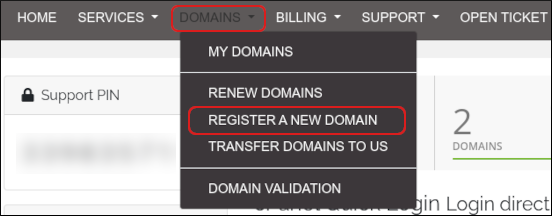
-
In the Find your new domain name text box, type the name of the domain that you want, and then click Search:
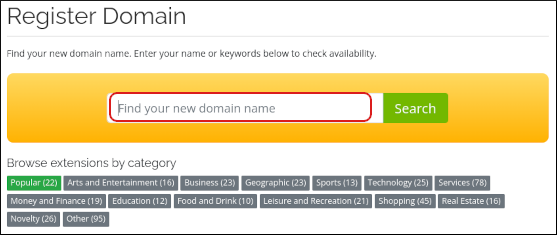
-
If the domain name is available, click Add to Cart:

- If you want to add any of the additional domains in the Suggested Domains list, click Add to Cart.
- Click Checkout when you are ready to check out. The Domains Configuration page appears.
- To add a hosting package to the domain, click No Hosting! Click to Add.
-
Select any additional options you want for the domain:
- To use external DNS hosting for the domain, select the DNS Management check box.
- To help protect your personal information, select the ID Protection check box.
This feature, also known as WHOIS privacy protection, prevents your personal contact information from appearing in the domain's public record. This protection can help reduce the amount of unwanted e-mail (spam) sent to your domain.
- To forward e-mail messages addressed to the domain, select the Email Forwarding check box.
- Under Nameservers, if you want to use custom nameservers, specify them here.
- Click . The Review & Checkout page appears.
-
On the Review and Checkout page, select the length of time for which you want to initially register the domain:
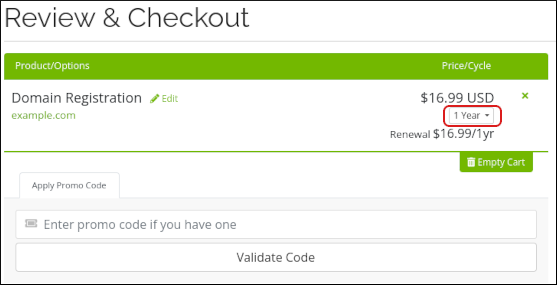
-
Click . The Checkout page appears. If you have an Dollar OVPN account and are logged in, the personal and billing information appears automatically. Otherwise, complete the fields.
If you have a promotional code, type it in the Enter promo code text box, and then click . - On the Checkout page, under Choose Account, select the account that you want to use.
-
In the Domain Registrant Information list box, select the contact that you want to use to register the domain:
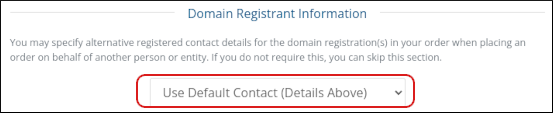
- Under Payment Details, select the payment method that you want to use.
- Select the I have read and agree to the Terms of Service check box.
- Click .