Viewing status information for your account
To view status information for your account, follow these steps:
- Log in to cPanel.
If you do not know how to log in to your cPanel account, please see this article.
- In the right column of the cPanel home screen, locate the heading:
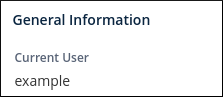
This section shows your username, primary domain name, and other basic information.
-
To view additional information about your account, click Server Information in the General Information section:

The Server Information page shows you information about your hosting account, IP address, software version numbers (including the cPanel version), and other features.
-
In the right column of the cPanel home screen, locate the Statistics heading:
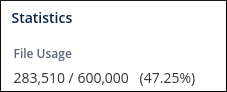
The Statistics column displays information about CPU and memory usage, bandwidth transfer, and more.
Accessing cPanel features
To access cPanel features, follow this step:
- There are two ways to access cPanel features:
- You can browse the various home screen sections and click the appropriate icon. For example, to change your password, locate the Preferences section, and then click Password & Security.
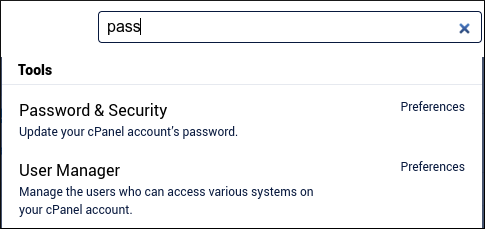
- Alternatively, you can start typing the feature name in the Search Tools text box. For example, to change your password, type pass in the Search Tools text box. Only a few results appear, including Password & Security at the top:
More Information
For more information about cPanel, please visit https://docs.cpanel.net/. Documentation for the latest version of cPanel as well as a selection of earlier versions is available.