About two-factor authentication
By default, when you log in to the Dollar OVPN Customer Portal (and probably most other accounts you have), you type a username and password to access your account.
Two-factor authentication (2FA) provides an extra layer of security, because in addition to knowing the correct username and password, you must provide another piece of information. For the Dollar OVPN Customer Portal, this piece of information is a numeric password generated on one of your mobile devices, such as a smartphone or tablet.
This means that for a potential attacker to access your account, he or she would not only need to have something you know (your username and password), but also something you have (your mobile device). This two-factor approach to logins can significantly enhance your account's security.
Enabling two-factor authentication for your account
There are two things you must do to use two-factor authentication with your Dollar OVPN account.
First, you must install an authenticator app on your smartphone or tablet:
- For Google Android and Apple iOS devices, we recommend the Google Authenticator app.
- For Windows Phone and other Microsoft Windows-based devices, you can use the Authenticator app or the Azure Authenticator app.
Second, you must enable two-factor authentication for your account in the Dollar OVPN Customer Portal. To do this, follow these steps:
- Log in to the Customer Portal.
If you do not know how to log in to the Customer Portal, please see this article.
- On the menu bar, click HELLO, NAME!, where NAME is your first name:

- Click :
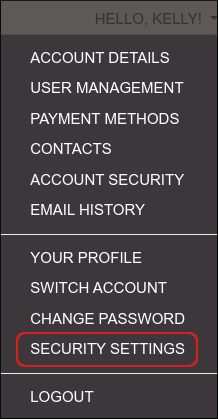
- Under Two-Factor Authentication, click . The Two-Factor Authentication setup process starts.
- Click . The Customer Portal generates a one-time password embedded in a QR code image.
-
Use the authenticator app on your mobile device to scan the QR code image. After your device scans the QR code, it generates a one-time numeric password.
Alternatively, you can manually enter the alphanumeric secret key to generate a numeric password. - Click .
-
Under Verification Step, in the text box type the numeric password (without any spaces) that is displayed on your mobile device, and then click . You should receive a Key Verified Successfully! message.
Make sure you store the backup code in a safe place. You must have this code if you ever lose your mobile device, or if it is inaccessible for some reason. Otherwise, you will not be able to access your account. -
Click . The next time you log in to the Customer Portal, you must have your mobile device to obtain the numeric password (this is the second factor of “two-factor authentication”). If you do not have your mobile device or if it is inaccessible for some reason, use your backup code to access your account.
Whenever you use a backup code, the Customer Portal generates a new backup code. Make sure you store it in a safe place.
Disabling two-factor authentication for your account
If you decide that you no longer want to use two-factor authentication with your Dollar OVPN account, you can disable it. To do this, follow these steps:
- Log in to the Customer Portal.
If you do not know how to log in to the Customer Portal, please see this article.
- On the menu bar, click HELLO, NAME!, where NAME is your first name:
- Click :
- Under Two-Factor Authentication, click .
- In the Enter Your Password text box, type your Dollar OVPN account password (not a numeric password from your mobile device), and then click . The Customer Portal disables two-factor authentication for your account.